
Every time you unlock your phone, open a browser, or launch a game, there is a silent coordinator making it all possible. That coordinator is the operating system — the foundational layer of software that sits between your hardware and everything you actually use. Without it, a laptop would be little more than an expensive collection of chips and circuits with no way to communicate or function together.
Whether you are using a Windows PC, a MacBook, an Android phone, or even a smart thermostat, an operating system is at work behind the scenes. It manages memory, runs your applications, translates your clicks and taps into meaningful actions, and keeps everything running smoothly. Understanding how an operating system works helps you make better choices about the technology you use — and gives you a clearer picture of how modern computing actually functions.
This guide explains operating systems in plain language: what they do, how their key parts work together, and why they matter so much for performance, security, and everyday usability.
What an Operating System Actually Does
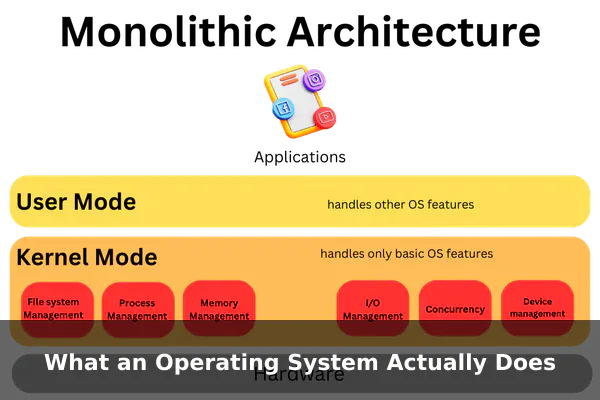
An operating system (OS) is system software that manages a computer’s hardware resources and provides common services for application programs. Think of it as the manager of a busy office building. Hardware components — the CPU, memory, storage, display, and keyboard — are like the building’s physical rooms and equipment. Applications are the teams working inside. The operating system is the building manager who makes sure every team gets the space and tools they need without stepping on each other.
At its core, an operating system performs five fundamental jobs:
- Resource management: Allocates processor time, memory, and storage to running programs so they do not interfere with each other.
- Process management: Starts, pauses, schedules, and stops programs as needed.
- File management: Organizes data into files and folders, controls who can read or write to them, and handles storage efficiently.
- Input/Output management: Translates interactions with keyboards, mice, touchscreens, speakers, and cameras into actions that applications can understand.
- User interface: Provides either a graphical desktop (GUI) or a text-based command line so users can interact with the system.
Without an operating system, each application would need to include its own code for talking to every possible piece of hardware — an impossibly complex and inefficient task. The OS handles that complexity once, so application developers can focus on building their actual software.
The Core Parts That Keep a System Running
An operating system is not a single program — it is a collection of tightly integrated components that each handle a specific job. Understanding these parts helps you see why operating systems are so powerful and why they require significant memory and storage to operate.
The Kernel
The kernel is the heart of the operating system. It runs at the lowest level of the system, with direct access to hardware. Everything else — including the user interface and applications — sits on top of it. The kernel handles memory allocation, manages the CPU schedule, and enforces security boundaries that prevent one program from corrupting another’s data. Because it operates with full hardware privileges, bugs in the kernel can cause system crashes, which is why it is developed and tested with extreme care.
Device Drivers
Device drivers are small programs that act as translators between the kernel and specific pieces of hardware — your graphics card, Wi-Fi adapter, printer, or USB device. Each driver knows the exact commands that a particular piece of hardware understands, so the OS does not need to know those low-level details directly. When you plug in a new device, the OS loads the right driver and the hardware becomes immediately usable.
File System
The file system defines how data is stored, named, and retrieved on a disk. Common file systems include NTFS (used by Windows), APFS (used by macOS), ext4 (common on Linux), and FAT32 (used on USB drives for cross-platform compatibility). The file system tracks where each file’s data physically lives on the storage device, manages permissions so only authorized users can access sensitive files, and keeps track of free space efficiently.
Memory and Process Management
The OS tracks every byte of RAM, deciding which running program gets which portion and reclaiming memory when a program closes. Modern operating systems also use virtual memory — reserving a section of the hard drive as an overflow area when RAM fills up. A process is a running instance of a program. When you open three apps at once, the OS creates three processes and rapidly switches the CPU between them — so quickly that everything appears to run simultaneously. This technique is called multitasking, and the scheduler decides which process gets CPU time, for how long, and with what priority.
How an Operating System Handles Everyday Tasks
Tracing what the OS actually does during common scenarios makes these abstract concepts concrete and easy to follow.
Booting the System
When you press the power button, firmware on the motherboard (BIOS or UEFI) runs a quick hardware check, then loads the OS bootloader from storage. The bootloader loads the kernel into memory. The kernel then initializes device drivers, mounts the file system, starts essential background services, and finally launches the desktop environment. The whole sequence — which takes just seconds on modern devices — involves thousands of coordinated steps happening in a precise order.
Opening and Running an Application
When you double-click an app icon, the OS reads the program’s executable file from storage, allocates a block of memory for it, creates a new process, and hands execution to the program. If the app requests access to a file, the network, or the display, those requests pass through the kernel, which checks permissions and fulfills or denies them accordingly. The application never touches hardware directly — every interaction goes through the OS.
Managing Multiple Open Programs
With several apps open simultaneously, the CPU scheduler switches between processes many times per second. Each program gets a short time slice, the CPU state is saved, and the next process picks up where it left off. From the user’s perspective, everything runs at once. The OS also watches for memory pressure — if RAM runs low, it may move idle processes’ data to swap space on the disk to free room for active applications.
Why Operating Systems Matter for Performance and Security
The operating system plays a direct role in how fast, stable, and secure your device is — far more than most users realize. Every design decision in the OS has measurable consequences for the experience you get every day.
Performance
An efficient OS scheduler maximizes CPU utilization while minimizing wait time for each process. Smart memory management prevents slowdowns caused by excessive swapping to disk. File system caching stores frequently accessed data in RAM so repeated disk reads are avoided. The quality of these internal algorithms — and how well they are tuned for a device’s specific hardware — has a major impact on how responsive a system feels under load.
Stability
Modern operating systems use process isolation: each application runs in its own protected memory space. If one program crashes, the OS can terminate it cleanly without taking down the entire system. This is why a crashed app usually just disappears rather than freezing the whole machine — the OS contains the damage and keeps everything else running.
Security
The OS enforces access controls that determine which users and programs can read, write, or execute specific files. It also manages system permissions for apps — similar to how Android and iOS ask whether an app can access your location or camera. Regular OS updates patch security vulnerabilities in the kernel and system libraries, which is why keeping your operating system current is one of the most important security habits you can maintain on any device.
Common Types of Operating Systems and Where They Are Used
Not all operating systems are the same. Different contexts demand different design priorities, from raw performance to energy efficiency to real-time responsiveness.
- Desktop/Laptop OS: Designed for interactive use with a rich graphical interface. Examples include Windows, macOS, and Linux desktop distributions. These prioritize multitasking, broad hardware support, and user experience.
- Mobile OS: Optimized for battery life, touch input, and cellular connectivity. Android and iOS dominate this category, emphasizing app sandboxing, location services, and tight integration with app stores.
- Server OS: Focused on stability, performance under heavy load, and remote management. Linux distributions like Ubuntu Server and Red Hat Enterprise Linux are common here. These systems rarely have graphical interfaces and are managed via command line.
- Embedded OS: Runs on devices with limited resources — smart TVs, routers, ATMs, medical devices, and industrial machines. Examples include FreeRTOS and custom Linux builds stripped down to only what the device needs.
- Real-Time OS (RTOS): Guarantees that critical tasks execute within a precise time window. Used in aircraft control systems, automotive safety systems, and factory automation where missing a deadline could be catastrophic.
Popular Examples: Windows, macOS, Linux, Android, and iOS
The operating systems most people encounter daily each have distinct strengths, ecosystems, and typical uses worth understanding before making a choice.
Windows
Developed by Microsoft, Windows is the most widely used desktop operating system in the world. It offers broad hardware compatibility — running on thousands of different PC configurations — and an enormous library of software, particularly for business productivity and gaming. Windows 11 introduced a redesigned interface with tighter cloud integration and modern security features.
macOS
Apple’s desktop OS runs exclusively on Mac hardware. Because Apple controls both the software and the hardware, macOS is highly optimized for the machines it runs on, particularly Apple Silicon models. It is favored by creative professionals for its performance with video editing, audio production, and design tools, and it integrates closely with iPhone and iPad through features like AirDrop and Handoff.
Linux
Linux is an open-source OS kernel used as the foundation for hundreds of distributions — Ubuntu, Fedora, Debian, Arch, and many more. It dominates in server environments, powers Android smartphones, and is preferred by developers and system administrators. Its open nature means it is highly customizable and free to use, though it requires more technical comfort than Windows or macOS for many everyday tasks.
Android and iOS
Android, built on the Linux kernel and maintained by Google, is the world’s most widely used mobile OS. Its open-source foundation allows device manufacturers to customize it extensively. iOS runs exclusively on iPhone and benefits from tight hardware-software integration, delivering reliable performance and long software update support within a curated, security-focused ecosystem.
How to Choose the Right Operating System for Your Needs
With so many options available, choosing an operating system comes down to a few practical factors that reflect how you actually use technology day to day.
- Software compatibility: If you rely on specific applications — design tools, engineering software, or a particular game — check which OS supports them natively before committing to a platform.
- Hardware ecosystem: If you already own an iPhone, macOS gives you seamless continuity features. If you use Google Workspace heavily, Android integrates naturally. Match the OS to the devices you already own.
- Ease of use: Windows and macOS offer polished, well-documented interfaces. Linux can be more demanding for non-technical users, though beginner-friendly distributions like Ubuntu have narrowed that gap considerably.
- Security priorities: iOS and macOS have strong security reputations partly because of their closed ecosystems. Linux vulnerabilities are often found and patched quickly thanks to its open-source community. Windows remains the most targeted platform by malware, though modern Windows includes capable built-in security tools.
- Budget: Windows requires a paid license for most use cases. macOS is free but requires Apple hardware. Most Linux distributions are completely free — a compelling option if your essential software runs on Linux.
- Customization needs: Linux offers nearly limitless control over the interface, kernel, and system behavior. macOS and Windows allow customization within defined boundaries. If you want full control, Linux is the clear answer.
For most everyday users — browsing, streaming, office work, and social media — any modern OS will handle the workload well. The right choice is usually the one that fits naturally into your existing habits, devices, and software requirements.
Conclusion
An operating system is far more than a background program — it is the foundation that makes every other piece of technology possible. From the moment a device boots to the second you close the last app, the OS is managing resources, enforcing security, translating your input into action, and keeping everything running in harmony. Understanding what operating systems do — and how they differ — gives you a meaningful advantage when evaluating devices, troubleshooting problems, or simply satisfying your curiosity about the technology you depend on every day.
Whether you stay with the familiar comfort of Windows, embrace the optimized experience of macOS, explore the freedom of Linux, or carry Android or iOS in your pocket, you now know what is happening beneath the surface. The operating system is, in every meaningful sense, the software that makes modern computing possible.
