
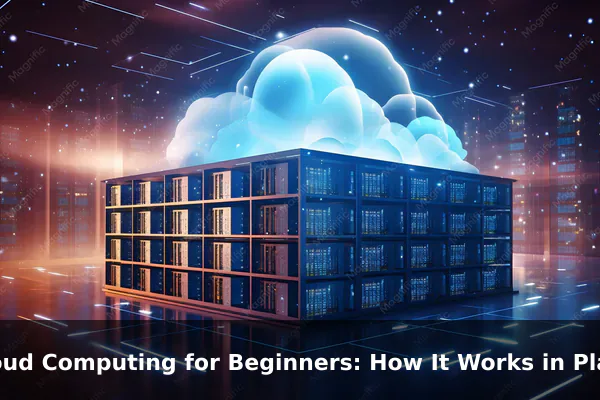
Cloud computing sounds technical, but the basic idea is simple: instead of keeping all your files, software, and computing power on your own device, you use resources that live on remote computers and access them over the internet. In plain English, the cloud lets you borrow computing tools the same way you use electricity from a power grid instead of building a generator at home.
Most people already use cloud computing every day without thinking about it. When you open Gmail, save photos to iCloud, stream a movie on Netflix, back up files to Google Drive, or collaborate in Microsoft 365, you are using cloud services. This article explains how cloud computing works in plain English, why it matters, where it shows up in everyday life, and how beginners can use it wisely without getting lost in jargon.
What Cloud Computing Actually Means
At its core, cloud computing means using computing resources over the internet instead of relying only on your own phone, tablet, or computer. Those resources can include storage, software, databases, servers, networking, and even raw processing power.
A Plain-English Definition
A beginner-friendly definition is this: cloud computing is a way to use someone else’s computers, storage, and software through the internet whenever you need them. The company running the service owns the hardware, maintains it, updates it, secures it, and makes it available to you on demand.
That matters because buying and managing everything yourself is expensive, inconvenient, and often unnecessary. You do not need a room full of servers to store family photos, run an email system, or host a business website. A cloud provider handles the heavy lifting in the background.
An Easy Analogy
A useful analogy is the difference between owning a private water well and using city water. If you own the whole system, you are responsible for the equipment, maintenance, capacity, and repairs. If you use a shared public service, you turn on the tap and pay for access. Cloud computing works in a similar way. You consume a service when you need it, while a provider manages the infrastructure behind it.
This is one reason the cloud has become so important. It changes computing from something you must fully own and maintain into something you can access as a service.
Why It Is Called the Cloud
The word cloud does not mean your files are floating in the sky. It comes from older network diagrams where engineers drew a cloud shape to represent the internet or an external network. Over time, the label stuck. Today, the cloud usually means remote computing services delivered online.
It also helps to separate cloud computing from related ideas. A web app is software you use through a browser. Cloud computing is the broader model that often powers that web app behind the scenes. In other words, cloud computing is the system, while a web app may be one visible product built on top of it.
How the Cloud Works Behind the Scenes
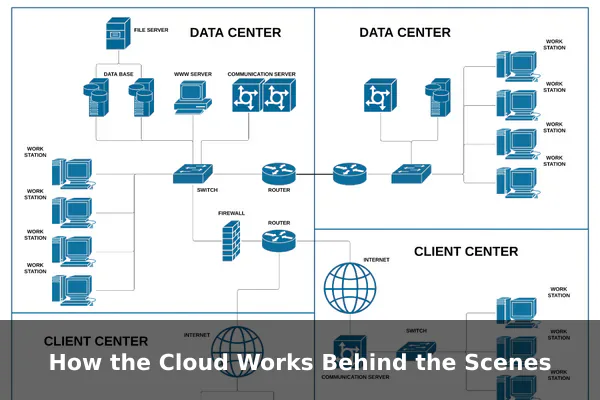
To understand how cloud computing works, imagine a chain of events. You open an app or website. Your device sends a request through the internet. That request reaches a remote server in a data center. The server processes the request, pulls the right data, and sends the result back to you, often in seconds or less.
Remote Servers and Data Centers
A server is a powerful computer designed to provide services, store information, or run applications for other devices. A data center is a facility that holds many servers together, along with networking equipment, cooling systems, backup power, and security controls.
When you use a cloud service, your files and app activity are usually handled inside these data centers. Large providers such as Amazon Web Services, Microsoft Azure, and Google Cloud operate huge networks of data centers around the world so users can access services quickly and reliably.
What Happens When You Open a Cloud Service
Suppose you open Google Drive and click on a document. A simplified version of the process looks like this:
- Your device connects to the internet.
- The app or browser sends a request to Google’s servers.
- The servers check your account and permissions.
- The document is retrieved from storage.
- The service sends the file contents back to your screen.
- When you type, your changes are sent back and saved on remote systems.
That is cloud computing in action. The work is shared between your device and a remote system. Your laptop or phone handles the display and local interaction, while remote infrastructure handles storage, syncing, account control, and often much of the processing.
Why It Often Feels Instant
Beginners sometimes wonder why the cloud can feel so fast if the data is far away. The answer is that cloud providers optimize for speed. They use:
- Multiple data centers in different regions
- Fast networks to move data efficiently
- Caching to keep frequently used content close to users
- Load balancing to spread traffic across many servers
- Redundancy so one failure does not stop the whole service
You do not see this infrastructure, but it is a major reason cloud services can serve millions of people at the same time.
Storage, Processing, and Syncing
The cloud is not just about storing files. It is also about processing information remotely. For example, a cloud photo service may organize images, create backups, detect duplicates, and sync albums across devices. A streaming service may adjust video quality based on your connection speed. A business app may calculate reports on remote servers rather than on your laptop.
This is one of the biggest shifts in modern computing: your device is no longer the only place where computing happens.
Everyday Examples of Cloud Computing
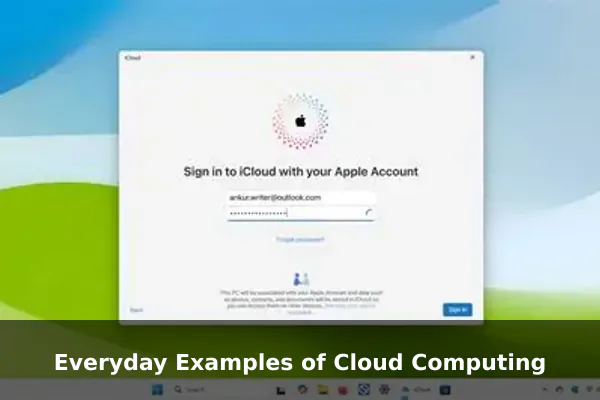
Cloud computing becomes much easier to understand when you connect it to everyday services. Many people use cloud tools every hour without realizing how much remote infrastructure is involved.
Email, Documents, and Teamwork
Services like Gmail, Outlook, Google Docs, and Microsoft 365 are classic cloud examples. Your messages and files are stored remotely, and you can access them from different devices after signing in. If you start writing a document on a laptop and continue on a phone, the cloud makes that continuity possible.
Real-time collaboration is another strong example. When two people edit the same document at once, cloud systems manage the updates, permissions, and syncing. That kind of live teamwork would be much harder with files stored only on one computer.
Photos, Backup, and File Storage
Cloud storage services such as Google Drive, Dropbox, OneDrive, and iCloud let users save files online instead of keeping the only copy on a local drive. That makes it easier to:
- Access files from multiple devices
- Recover data after a device is lost or damaged
- Share folders and links with others
- Keep versions of files after edits
Automatic phone backup is one of the most practical cloud features for beginners. Many people appreciate the cloud most after a device breaks and their photos are still available online.
Streaming and Entertainment
When you watch Netflix, listen to Spotify, or play a cloud-connected game, you are using cloud infrastructure. The content is stored on remote systems and delivered to your device when requested. In some cases, even the processing happens remotely. For example, certain cloud gaming services run the game on a remote machine and stream the video output to the player.
This shows that cloud computing is not limited to office work. It also powers entertainment, media delivery, and digital convenience at scale.
Services You Barely Notice
Many modern apps depend on the cloud in less obvious ways. A weather app pulls forecast data from remote servers. A maps app uses cloud-based routing and traffic analysis. A smart home app may store settings online so your devices stay in sync. Even app updates, account logins, and notification systems often rely on cloud services.
Once you start noticing these patterns, the cloud stops feeling abstract. It becomes a practical part of digital life.
The Main Types of Cloud Services
Cloud computing is often grouped into three main service models: SaaS, PaaS, and IaaS. These labels sound technical, but the core idea is simple. They describe how much of the system the provider manages for you and how much you manage yourself.
SaaS: Software as a Service
Software as a Service, or SaaS, is the most beginner-friendly model. You simply use the software through a browser or app, while the provider handles the servers, updates, storage, and maintenance.
Examples include:
- Google Docs
- Dropbox
- Salesforce
- Zoom
- Canva
SaaS is popular because users do not need to install or maintain much. It is ideal for everyday consumers, small teams, and businesses that want convenience over technical control.
PaaS: Platform as a Service
Platform as a Service, or PaaS, is aimed more at developers. In this model, the provider gives you a managed environment for building and running applications. You focus on your code and app logic, while the platform handles much of the infrastructure underneath.
A beginner analogy is renting a ready-to-use kitchen instead of building a restaurant from scratch. The tools, utilities, and work area are already prepared. You just bring your recipe.
Examples include platforms that let developers deploy apps without directly managing servers, operating systems, or scaling rules.
IaaS: Infrastructure as a Service
Infrastructure as a Service, or IaaS, provides the most control. Instead of using finished software, you rent computing building blocks such as virtual servers, networking, and storage. You decide what software to install and how to configure it.
This is closer to renting an empty commercial space. You get the structure, power, and connectivity, but you must set up what happens inside.
IaaS is common for companies with special technical requirements, custom systems, or teams that want flexible infrastructure without owning physical hardware.
Who Uses Which Model
A simple way to remember the difference is this:
- SaaS: best for end users who want a finished tool
- PaaS: best for developers who want a ready environment
- IaaS: best for technical teams that want deep control
Beginners usually encounter SaaS first. That is why cloud computing often feels familiar before people know the formal terms.
Why Businesses and Individuals Use the Cloud
The cloud became popular because it solves real problems. It is not just a trend word. For many people and companies, it is simply a more practical way to use technology.
Benefits for Everyday Users
For individual users, the cloud offers convenience more than anything else. Some of the biggest advantages are:
- Access from anywhere: your files and services can follow you across devices
- Automatic backup: your data is less likely to vanish with one damaged device
- Easy sharing: you can send links instead of large attachments
- Automatic updates: services improve without manual installation
- Lower hardware pressure: some tasks are handled remotely
These benefits explain why even non-technical users rely on the cloud for photos, notes, calendars, and documents.
Benefits for Teams and Businesses
For businesses, the cloud can reduce complexity and improve flexibility. Instead of buying too much hardware in advance and hoping it is enough later, a company can scale up or down as needed.
That helps with:
- Launching services faster
- Supporting remote work
- Managing sudden traffic spikes
- Rolling out updates more easily
- Paying for usage instead of oversized idle equipment
A small startup and a large enterprise may both use the cloud, but for different reasons. The startup may want low upfront cost. The enterprise may want global reach, resilience, analytics, and standardized infrastructure.
Scalability Is a Major Reason
One of the most important cloud advantages is scalability. That means a service can grow or shrink based on demand. If an online store gets a huge wave of visitors during a sale, the cloud can often add resources automatically. If demand drops later, those extra resources can be reduced.
Without the cloud, a business might have to buy expensive hardware for peak demand even if that peak only happens occasionally. Cloud computing makes that model far more efficient.
It Also Simplifies Maintenance
Traditional systems often require manual updates, local installations, and planned hardware replacement. Cloud services shift much of that responsibility to the provider. This does not remove all IT work, but it can reduce the burden, especially for smaller organizations without large technical teams.
In short, people use the cloud because it is flexible, scalable, and easier to consume than building everything alone.
Common Concerns and Limitations
Cloud computing has clear advantages, but it is not magic and it is not perfect. Beginners should understand the tradeoffs so they can make better decisions.
Security and Privacy Questions
A common concern is whether cloud computing is safe. The honest answer is that it depends on the provider, the setup, and the user. Large cloud providers often invest heavily in security, including encryption, monitoring, physical security, and backup systems. In many cases, their security can be stronger than what an average person or small business could build alone.
However, the cloud does not remove responsibility. Weak passwords, reused logins, poor sharing habits, and phishing attacks can still lead to account compromise. A secure platform is not enough if the account owner uses unsafe practices.
Privacy is a different but related issue. Users should know where data is stored, who can access it, what permissions apps request, and how providers handle data collection.
Internet Dependence
Cloud services depend on internet access. If your connection is slow or unavailable, some tasks may become frustrating or impossible. This is one of the clearest limits of the cloud. Local files and offline software still have value because they can work without an active connection.
That is why many good services offer partial offline access, local syncing, or downloaded copies for essential work.
Outages Can Happen
Even large providers sometimes experience outages. A service may go down because of software errors, configuration mistakes, hardware issues, or network problems. These events are usually temporary, but they show why it is risky to assume the cloud is always available.
For important data, smart users still keep backups and understand their recovery options.
Subscription Costs and Lock-In
Many cloud services look inexpensive at first because they spread cost over time. But monthly subscriptions can add up, especially if you pay for extra storage, premium features, or multiple services at once.
There is also the issue of vendor lock-in. That means it can be inconvenient to move your files, workflows, or systems from one provider to another. The more deeply you depend on a platform, the harder switching may become.
These concerns do not make cloud computing bad. They simply remind beginners that convenience always comes with tradeoffs.
Cloud Computing vs Local Storage and Traditional Software
Many beginners understand the cloud best by comparing it to older ways of using technology. The cloud did not completely replace local storage or traditional software. Instead, it changed when and why people use them.
Local Storage: What It Means
Local storage means files live directly on your device, such as a laptop drive, a phone’s internal storage, a memory card, or an external hard drive. Traditional software is often installed and run mainly on that same device.
This setup has strengths:
- It can work offline
- You may have more direct control over files
- There are fewer internet-related delays
- One-time purchases may replace ongoing fees in some cases
But it also has weaknesses. If a device fails and there is no backup, data can be lost. Sharing can be slower. Moving work across devices may be awkward. Updates may require manual effort.
Where Cloud Services Win
Cloud services are usually better when you want synchronization, collaboration, remote access, and easier backup. They are especially useful when multiple people need the same information or when you switch between devices often.
For example, a spreadsheet saved only on one laptop is limited by that laptop. A spreadsheet stored in the cloud can often be opened, edited, and shared from anywhere with an internet connection.
Where Local Still Wins
Local computing still matters for privacy-sensitive workflows, offline access, certain creative tasks, and situations where latency must be extremely low. Some professional video editing, engineering, and gaming tasks still rely heavily on local hardware.
That is why the real world is not cloud versus local. It is usually a mix of both.
The Best Everyday Approach Is Often Hybrid
A practical beginner setup often combines cloud and local tools. You might keep active files synced in the cloud, save offline copies of critical documents, back up photos automatically, and still use installed software for specialized tasks.
This hybrid approach provides convenience without depending entirely on one model. It also shows that cloud computing is not about replacing every older tool. It is about using remote resources where they make the most sense.
How Beginners Can Start Using the Cloud Wisely
If you are new to cloud computing, the best approach is not to learn every technical detail at once. Start with a few useful habits and services that solve a real problem.
Good First Steps
Beginners can start with simple, high-value uses of the cloud:
- Use a trusted cloud storage service for documents and photos.
- Turn on automatic backup for your phone.
- Create a document in a cloud office app and access it from two devices.
- Practice sharing a file with view-only permission.
- Learn where your storage limit and account settings are located.
These small steps make the cloud feel practical instead of abstract.
A Basic Safety Checklist
Using the cloud wisely also means protecting your account and data. A simple checklist includes:
- Use a strong, unique password for each main account
- Enable two-factor authentication
- Review file sharing permissions before sending links
- Know how to restore deleted files or previous versions
- Check whether important folders sync offline
- Understand what your free plan does and does not include
For most beginners, account security matters more than deep infrastructure knowledge. If someone gains access to your account, the risk is the same whether the service is technically advanced or not.
Questions to Ask Before Paying for a Cloud Service
Before subscribing to a cloud product, ask a few plain questions:
- What problem does this solve for me?
- How much storage or usage do I actually need?
- Can I export my data if I want to leave?
- Does it work well across my devices?
- What happens if I miss a payment or exceed the limit?
- Is offline access available when needed?
These questions help beginners avoid buying features they will never use.
Think of the Cloud as a Tool, Not a Mystery
The most useful mindset is to treat cloud computing like any other tool. You do not need to memorize every acronym or architecture diagram to benefit from it. If you understand that your data and services are being delivered from remote systems, and you know the main advantages and tradeoffs, you already understand the cloud better than many people think they do.
Conclusion
Cloud computing for beginners does not need to be complicated. In plain English, it is a way to use storage, software, and computing power over the internet instead of keeping everything on one local device. That simple model supports email, backups, streaming, collaboration, business apps, and much more.
The reason the cloud matters is not because it sounds futuristic. It matters because it makes technology easier to access, easier to scale, and easier to use across devices. Once you understand the basics of remote servers, online storage, cloud apps, and account security, the cloud stops being a buzzword and starts making practical sense. For most people, the smartest next step is simple: use the cloud for the jobs it does well, keep good security habits, and stay aware of when local control still matters.
