
A virtual machine is one of the most useful ideas in modern computing, yet many people use services powered by virtual machines every day without realizing it. In plain English, a virtual machine, or VM, is a computer running inside another computer. It has its own operating system, its own virtual hardware, its own files, and its own applications, even though the real physical resources come from a host machine underneath.
That simple idea has changed how software is built, tested, secured, and delivered. Instead of needing a separate physical computer for every operating system or server role, one powerful machine can be divided into many isolated environments. Each environment behaves like an independent computer, which makes virtual machines valuable for developers, IT teams, security analysts, students, and businesses of every size.
Virtual machines also matter because they solve practical problems that have not gone away. Teams still need safe places to test software, companies still need to run older business applications, and cloud providers still rely heavily on virtualization to offer flexible computing resources. Even in a world full of containers, cloud platforms, and managed services, virtual machines remain a core building block of digital infrastructure.
This guide explains what a virtual machine actually is, how it works behind the scenes, why hypervisors matter, where VMs fit compared with containers, and why this technology continues to be relevant. The goal is not to drown you in jargon, but to make the concept clear enough that you can recognize when a VM is the right tool and when it is not.
What a Virtual Machine Actually Is
A virtual machine is a software-defined computing environment that imitates a physical computer. When you open a VM, you are not just opening an app window. You are starting a self-contained system that can boot an operating system, use storage, connect to a network, and run programs as though it were a real standalone device.
The key idea is virtual hardware. A VM is given virtual versions of the components a normal computer expects to see, such as:
- Virtual CPU: processing power allocated from the host machine.
- Virtual memory: RAM reserved for the guest system.
- Virtual storage: a disk file or disk image that acts like a hard drive or SSD.
- Virtual network adapter: a network connection that lets the VM communicate with other systems.
- Virtual peripherals: devices such as USB controllers, graphics adapters, or sound hardware, depending on the VM setup.
Host Machine vs Guest Machine
To understand VMs, it helps to separate two roles:
- Host: the real physical machine providing the processing power, memory, storage, and networking.
- Guest: the virtual machine running on top of the host.
The host might be a laptop, desktop workstation, or a rack server in a data center. The guest might be Windows running inside Linux, Linux running inside Windows, or several Linux servers running side by side on one physical host. Each guest thinks it has its own machine, even though it shares the real hardware with other workloads.
Why It Feels Like a Real Computer
A VM feels real because the operating system inside it interacts with what looks like normal hardware. When the guest operating system starts, it detects processors, memory, storage, and network devices just as it would on a physical computer. The difference is that those devices are created and managed by virtualization software rather than existing as separate pieces of hardware.
This illusion is powerful. It means you can install an operating system in a VM, apply updates, install apps, create user accounts, and configure settings exactly as you would on a normal machine. From the guest system’s point of view, it is a computer. From the administrator’s point of view, it is a flexible software object that can be copied, paused, moved, backed up, or deleted far more easily than a physical device.
How Virtual Machines Work Behind the Scenes
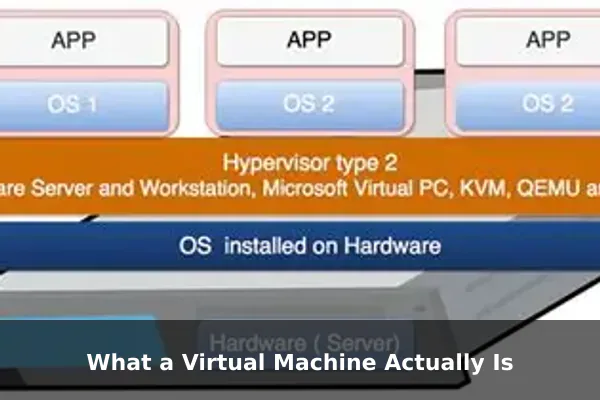
The technology that makes VMs possible is called a hypervisor. A hypervisor creates and manages virtual machines by sitting between the physical hardware and the guest operating systems. Its job is to divide real resources into safe, controlled portions and present them as virtual hardware to each VM.
Without a hypervisor, one operating system would usually control the whole machine directly. With a hypervisor, multiple guest systems can share the same physical hardware while staying logically separated from one another.
The Role of the Hypervisor
The hypervisor performs several critical tasks:
- Allocates CPU time to each VM.
- Reserves and manages memory.
- Maps virtual disks to real storage.
- Controls virtual network traffic.
- Maintains isolation between guest systems.
- Handles operations such as snapshots, suspension, cloning, and migration.
Think of it as a traffic controller for computing resources. It decides which VM gets access to which resources, when, and under what limits.
How Resource Sharing Works
Suppose a host server has 32 processor cores and 128 GB of RAM. The hypervisor can divide those resources among several virtual machines. One VM might get 4 virtual CPUs and 16 GB of RAM for a test database. Another might get 8 virtual CPUs and 32 GB of RAM for a web application. A third might be a lightweight utility server with fewer resources.
These allocations can be fixed or adjusted over time, depending on the platform. This is one reason VMs are so useful: administrators can tune resources based on workload rather than buying a separate physical machine for every task.
Virtual Disks and Files
Many virtual machines store their hard drives as files on the host system. Those files can represent complete operating system installations, application data, or templates. Because a VM can be packaged into files, it becomes easier to:
- Back it up
- Clone it
- Move it to another host
- Restore an earlier state
- Create repeatable lab environments
This file-based approach is a major reason virtualization became so popular in server management and software testing.
Isolation and Containment
One of the most important features of virtual machines is isolation. Each guest operating system runs in its own controlled environment. If one VM crashes, gets infected with malware, or misconfigures a service, the problem is less likely to affect other VMs on the same host. That does not make virtualization magically risk-free, but it creates a strong boundary that is useful for stability and security.
Isolation is also why VMs are commonly used as sandboxes. If you need to test suspicious software, reproduce a bug, or try an operating system change without risking your main computer, a VM gives you a safer environment to experiment in.
Type 1 vs Type 2 Hypervisors
Not all virtualization platforms work the same way. Hypervisors are usually grouped into two broad categories: Type 1 and Type 2. The difference matters because it affects performance, management style, and common use cases.
Type 1 Hypervisors
A Type 1 hypervisor, often called a bare-metal hypervisor, runs directly on the physical hardware. There is no full general-purpose host operating system sitting underneath it in the usual sense. This design is common in data centers and enterprise environments where performance, scale, and centralized management matter most.
Type 1 hypervisors are typically used for:
- Enterprise server consolidation
- Private cloud infrastructure
- High-availability clusters
- Large development and test environments
- Virtual desktop infrastructure
Because the hypervisor is closer to the hardware, it usually delivers better efficiency and stronger control over system resources.
Type 2 Hypervisors
A Type 2 hypervisor, often called a hosted hypervisor, runs as an application on top of a normal operating system such as Windows, macOS, or Linux. This model is especially common on personal computers because it is easy to install and convenient for everyday experimentation.
Type 2 hypervisors are often used for:
- Running another operating system on a laptop
- Testing software in different environments
- Learning Linux or Windows administration
- Trying beta software safely
- Opening older applications that require a different OS
They are extremely practical, but they add an extra layer because the host operating system also consumes resources and mediates access to hardware.
Key Differences at a Glance
- Placement: Type 1 runs on hardware, while Type 2 runs on a host operating system.
- Common environment: Type 1 is more common in servers, while Type 2 is more common on desktops and laptops.
- Performance: Type 1 usually has lower overhead.
- Convenience: Type 2 is usually easier for individuals to install and use quickly.
- Management: Type 1 platforms often provide advanced enterprise features for scaling and automation.
For a beginner, the simplest mental model is this: Type 1 is built for infrastructure, while Type 2 is built for convenience.
Why Businesses and Developers Use VMs
Virtual machines are not just technical curiosities. They solve real operational problems. Their value comes from flexibility, repeatability, and isolation. Whether the user is a solo developer or a large organization, VMs often reduce cost, risk, and friction.
Server Consolidation
Before virtualization became widespread, organizations often ran one physical server for one application or role. That approach was expensive and wasteful because many servers used only a small fraction of their hardware capacity. Virtualization changed that model by allowing multiple virtual servers to run on a single physical host.
For example, one host might run:
- A web server VM
- A database VM
- An internal file server VM
- A monitoring VM
- A development environment VM
This improves hardware utilization and can lower power, space, and maintenance costs.
Software Testing and QA
Developers and quality assurance teams use VMs to test software across different operating systems and system states. A program may behave differently on Windows 10, Windows 11, Ubuntu, or a clean installation with specific dependencies. Virtual machines make it practical to create those environments without maintaining a room full of physical test machines.
They are especially useful because testers can take a snapshot of a working state, run experiments, and then roll back instantly. That saves time and makes troubleshooting more reproducible.
Security Sandboxing
Security teams often use virtual machines to analyze suspicious files, visit risky environments, or observe malware behavior in a controlled lab. The goal is to keep the main system protected while still allowing investigation. A VM is not a perfect security barrier by itself, but it provides a much safer place to examine dangerous behavior than a production machine.
Legacy Software Support
Many businesses still depend on older applications that were built for outdated operating systems. Rewriting or replacing those systems can be expensive and risky. A virtual machine can keep that older environment running without requiring separate aging hardware.
This is one of the least glamorous but most important reasons VMs still matter. Technology stacks change quickly, but business processes often do not. Virtualization helps bridge that gap.
Training and Labs
Instructors, students, and certification candidates use VMs to create repeatable learning environments. Instead of giving every student a dedicated physical computer for each lesson, a training lab can provide prebuilt virtual machines with the exact tools and settings needed for a class.
This approach works well for networking labs, Linux administration, Windows Server practice, cybersecurity exercises, and database training.
Virtual Machines vs Containers
Virtual machines and containers are often mentioned together, but they are not the same thing. Both package workloads in a portable way, yet they operate at different layers and solve different problems.
The Main Structural Difference
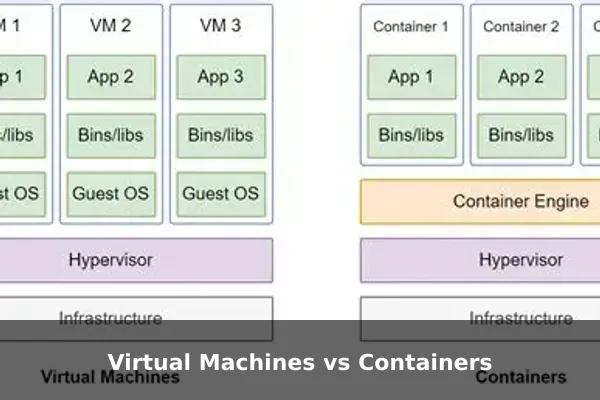
A virtual machine includes a full guest operating system. That means every VM contains its own kernel, system libraries, and operating system services. A container, by contrast, usually shares the host operating system kernel while isolating the application and its dependencies in user space.
This difference affects startup speed, resource usage, and workload design.
Why Containers Are Lighter
Because containers do not normally require a full guest operating system for each instance, they are usually faster to start and more lightweight. You can launch many containers quickly, which makes them attractive for microservices, continuous deployment pipelines, and horizontally scalable applications.
Virtual machines are heavier because each one runs a full operating system. That adds overhead, but it also provides stronger separation at the OS level.
When a VM Makes More Sense
A virtual machine is usually the better fit when you need:
- A completely separate operating system
- Strong isolation between workloads
- Support for legacy applications
- Kernel-level customization
- Traditional server behavior with persistent system administration
When a Container Makes More Sense
A container is often better when you need:
- Fast deployment of application components
- Efficient scaling of stateless services
- Lightweight packaging for development pipelines
- Consistent runtime behavior across environments
- High density on shared infrastructure
Why the Two Often Work Together
In real infrastructure, containers and virtual machines are often combined rather than treated as rivals. Many organizations run containers inside virtual machines. That gives them a practical balance: VMs provide infrastructure isolation, while containers provide application-level portability and speed.
So the better question is not whether VMs or containers are universally superior. The real question is which layer of abstraction solves the problem you actually have.
Main Benefits and Common Limitations
Like every technical tool, virtual machines have clear strengths and equally real tradeoffs. Understanding both sides makes it easier to use them well.
Main Benefits of Virtual Machines
- Isolation: problems in one VM are less likely to spread into another workload.
- Flexibility: you can run different operating systems on the same physical host.
- Portability: many VMs can be copied, cloned, exported, or moved between systems.
- Efficient hardware use: multiple virtual systems can share one physical machine.
- Snapshot and rollback features: useful for testing, updates, and lab work.
- Legacy support: older environments can stay available without dedicated old hardware.
- Disaster recovery options: VM images and backups can simplify restoration planning.
Common Limitations of Virtual Machines
- Performance overhead: virtualization is efficient, but it is not identical to running directly on bare hardware.
- Resource consumption: each VM needs memory, storage, and CPU time.
- Management complexity: large VM fleets require monitoring, patching, and lifecycle control.
- Storage growth: virtual disk files and snapshots can consume significant space.
- Startup time: VMs usually boot more slowly than containers.
- Licensing costs: some guest operating systems or management tools may add cost.
Performance: Good, but Not Free
Modern virtualization is highly optimized, and for many workloads the performance difference is small enough to be acceptable. Still, it is a mistake to think the abstraction layer has no cost. I/O-heavy workloads, graphics-intensive tasks, or extremely latency-sensitive systems may require careful tuning or direct access to hardware.
In other words, VMs are efficient, but the convenience comes with engineering tradeoffs. That is normal. The real question is whether the flexibility and isolation justify those costs for a given workload.
Where Virtual Machines Show Up in Everyday Tech
Virtual machines may sound like something only enterprise administrators care about, but they appear in many familiar parts of technology. Once you understand the concept, you start noticing VMs almost everywhere.
Cloud Infrastructure
A major reason cloud computing became practical at scale is virtualization. When a cloud provider offers an on-demand server instance, that server is often a virtual machine or is closely related to virtualization technology. The provider can carve large pools of hardware into isolated customer environments, allocate resources dynamically, and move workloads when needed.
This is why VMs remain foundational even when users mostly see a simple web dashboard and a monthly bill.
Developer Workstations
Developers frequently use virtual machines on laptops or desktops to reproduce production-like environments, test across platforms, or keep experiments separate from their main setup. A web developer might run a Linux VM on a Windows laptop. A security student might keep a dedicated analysis VM. A QA engineer might maintain several OS images for compatibility testing.
Enterprise IT Operations
Businesses use VMs for domain controllers, internal tools, application servers, file servers, monitoring systems, jump boxes, and backup appliances. Virtualization made enterprise infrastructure more flexible because administrators can provision systems faster and manage them more consistently than physical one-box-per-role setups.
Cybersecurity and Digital Forensics
Analysts often need controlled, resettable environments. Virtual machines are ideal for observing software behavior, reproducing incidents, and isolating tools used during investigations. Snapshots make it easier to return to a known clean state after each test.
Education and Home Labs
Many people first learn networking, Linux, Windows Server, or ethical hacking through home labs built with VMs. Instead of buying many physical computers, they can create several machines on one reasonably powerful device and simulate real network scenarios.
That educational role matters. Virtual machines lower the barrier to hands-on technical learning.
How a Typical VM Lifecycle Works
To make the concept more concrete, it helps to look at the usual lifecycle of a virtual machine from creation to retirement.
1. Create the VM
An administrator or user defines the VM’s virtual hardware. This usually includes the number of virtual CPUs, the amount of RAM, the disk size, and the network setup.
2. Install or Attach an Operating System
The VM either boots from an installer image or is created from a prebuilt template. At this point, it starts becoming a usable machine rather than an empty container for resources.
3. Configure the Environment
The guest operating system is updated, accounts are created, applications are installed, and any required services are configured. This step looks very similar to setting up a physical computer.
4. Use Snapshots or Templates
Once the VM reaches a stable state, users often create snapshots or templates. This allows quick rollback or repeatable deployment later.
5. Operate and Monitor
The VM runs its workload. During this phase, administrators monitor CPU, memory, storage, network usage, patch status, and backups, just as they would with physical systems.
6. Scale, Clone, Move, or Retire
If needs change, the VM can often be resized, cloned for another purpose, migrated to another host, archived, or deleted. That flexibility is one of virtualization’s biggest advantages over traditional hardware-only deployment models.
Key Takeaways Before Choosing a VM
Virtual machines matter because they let one physical computer behave like many separate computers. That gives users a practical mix of isolation, flexibility, portability, and control. Whether the goal is to run another operating system, host multiple servers, test software safely, preserve a legacy app, or build lab environments, VMs remain one of the most useful tools in computing.
They are not the lightest solution for every workload, and they are not a replacement for containers, serverless platforms, or dedicated hardware in every case. But they continue to matter because they solve a different class of problems: full-system isolation, operating system independence, and infrastructure-level control.
If you are deciding whether to use a virtual machine, ask a few simple questions:
- Do you need a full separate operating system?
- Do you need stronger isolation than an ordinary application sandbox?
- Do you need to test or preserve a specific system state?
- Do you need to run older software that depends on a different environment?
- Do you need infrastructure that can be copied, moved, and restored easily?
If the answer to several of those questions is yes, a VM is probably worth considering. That is why virtual machines still matter so much: they turn computing environments into manageable, repeatable software objects without losing the familiar behavior of a real machine.
For beginners, the most useful way to remember the idea is this: a virtual machine is a complete computer made from software, powered by real hardware, and controlled by a hypervisor. Once that clicks, the rest of modern infrastructure starts to make much more sense.
