
Desktop software remains one of the most important parts of modern computing, even in a world filled with mobile apps and browser-based tools. Many people use desktop programs every day without stopping to think about what makes them different. When you open a word processor on a laptop, edit a photo on a PC, manage business records on an office computer, or run a coding tool on a workstation, you are most likely using desktop software.
This article explains desktop software in clear terms, with a focus on how it works, where it is used, and why it still matters. You will learn the definition of desktop software, how desktop applications interact with a computer, the main types people rely on, and examples that make the idea easy to understand.
To make the topic practical, the guide also compares desktop software with web apps and mobile apps. That comparison is especially useful because many tools now exist in more than one form. Some are built mainly for computers, some live in the browser, and some are designed for phones first. Understanding desktop software helps you choose the right tool for work, study, business, and creative tasks.
What Desktop Software Means
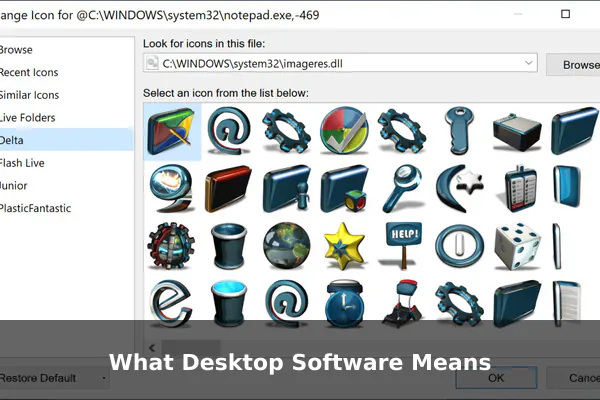
Desktop software is software that is installed and runs directly on a desktop or laptop computer. It is designed for operating systems such as Windows, macOS, or Linux, and it typically uses the computer’s local resources, including storage, memory, processor power, and connected hardware.
In simple terms, desktop software is a computer program you usually download, install, and open from your device rather than using entirely through a web browser. It often appears as an icon on the desktop, in the Start menu, in the Applications folder, or in a system launcher.
A Simple Beginner-Friendly Definition
A clear way to define it is this: desktop software is software made to run on a personal computer as a locally installed application. That is the core idea. Unlike many web-based tools, it does not depend on a browser tab as its main environment.
This does not always mean it works only offline or never connects to the internet. Many desktop programs do sync data, download updates, or use cloud features. The key point is that the main software itself is installed on the computer and runs as a native program.
Where Desktop Software Fits in the Software World
Desktop software is often confused with broader terms like application software. The difference is useful:
- Application software is a broad category that includes many tools users interact with.
- Desktop software is a more specific category within that broader world, focused on software built for desktop or laptop computers.
- System software supports the computer itself, such as the operating system and device drivers.
So, all desktop software can be considered software for users, but not all software is desktop software. Browser-based tools and mobile apps sit in different delivery environments even when they serve similar purposes.
Common Devices and Operating Systems
Most desktop software is built for one or more of these environments:
- Windows PCs, which support a huge range of business, utility, and gaming software
- macOS computers, often associated with creative tools, productivity apps, and development software
- Linux systems, popular in technical, server, academic, and developer-focused environments
Some desktop programs are cross-platform, meaning they can run on multiple operating systems. Others are tightly optimized for one platform only.
How Desktop Software Works
To understand why desktop software still matters, it helps to look at how it operates behind the scenes. Desktop applications are built to use the computer directly, which affects performance, offline access, file handling, and hardware support.
Installation and Local Execution
Most desktop software is delivered through an installer, app package, or software store. After installation, the program becomes part of the local system. When you launch it, the software runs from the computer’s storage and uses system memory and processing power in real time.
This local execution is one of the main differences between desktop software and software that runs mainly on a remote server through a browser. Because a desktop program runs natively, it can often feel faster and more responsive, especially for heavy tasks such as video editing, 3D modeling, large spreadsheets, or software development.
Access to Files and Folders
Desktop software usually has direct access to files stored on the computer, subject to system permissions. That makes it practical for tasks such as:
- opening and saving documents
- organizing folders
- importing media files
- exporting reports
- working with local databases
This file-based workflow is one reason desktop software remains useful in professional settings. A designer may need direct control over project assets. An accountant may need secure local copies of reports. A developer may need to manage source code, logs, and compiled files in different directories.
Offline Capability
Many desktop programs can keep working without an internet connection. That does not mean every feature remains available, but core functionality often does. For example, a desktop text editor, media player, coding environment, or image editor may continue to run normally even when the device is offline.
This matters in situations where internet access is limited, unreliable, expensive, or restricted by company policy. Offline capability is still a major advantage in travel, field work, education, and industries that handle sensitive internal data.
Hardware Integration
Desktop software can interact more deeply with computer hardware than many web apps can. Depending on the software and operating system, it may use:
- printers and scanners
- microphones and webcams
- graphics cards
- external drives
- specialized keyboards or input devices
- industrial or scientific equipment
This direct hardware relationship is especially important in creative, technical, and professional workflows. For example, music production software may use audio interfaces, while engineering software may benefit from a powerful GPU.
Updates, Licensing, and Accounts
Desktop software has changed over time. In the past, many programs were bought once and installed from a disk. Today, desktop software may be distributed in several ways:
- one-time purchase software
- subscription-based software
- freeware
- open-source desktop applications
- apps downloaded through official stores
Some programs update automatically. Others require manual downloads or administrator approval. Many also connect to user accounts for syncing, activation, or cloud backup. Even so, the core application still runs as a desktop program rather than as a browser-only service.
Main Types of Desktop Software
Desktop software covers many categories. The easiest way to understand it is by looking at the main types people use on computers every day.
Productivity Software
Productivity tools help users create, edit, and organize work. This category includes:
- word processors
- spreadsheet software
- presentation programs
- note-taking tools
- email clients
- calendar applications
These are some of the most familiar examples of desktop software because they are common in schools, offices, and home computing.
Creative and Media Software
Creative professionals often depend on desktop programs because demanding tasks need performance, precision, and hardware access. This group includes:
- photo editors
- video editing tools
- audio production software
- graphic design programs
- animation and 3D software
Desktop versions are often more powerful than lightweight mobile or browser alternatives, especially for large projects and advanced controls.
Business and Office Applications
Many businesses still rely on desktop software for operations, reporting, inventory, accounting, payroll, customer records, and internal management. In some industries, these tools are customized for local systems or older workflows that must remain stable and secure.
Business desktop software may be installed on a single machine, across office computers, or inside a controlled company network. That setup can be useful where privacy, compliance, or internal access rules are important.
Developer and Technical Tools
Programmers, engineers, analysts, and IT teams often work with desktop software such as:
- code editors and integrated development environments
- database management tools
- virtual machine software
- terminal applications
- system monitoring utilities
These tools usually benefit from local performance, file access, extension support, and control over the computing environment.
Utilities and Maintenance Tools
Utility software helps manage the computer itself. Common examples include:
- backup programs
- antivirus applications
- disk cleanup tools
- compression software
- file transfer tools
- system optimization programs
These are practical examples of desktop software because they work closely with the operating system and local storage.
Desktop Games
Games are also a major desktop software category. PC games often require installation, high graphics performance, local file storage, controller support, and advanced settings. While games are sometimes discussed separately, they are still an important part of the desktop software ecosystem.
Common Uses in Everyday Life and Work
Desktop software is not limited to offices or technical users. It appears in daily life across education, communication, entertainment, administration, and specialized professions.
Personal Use at Home
At home, people use desktop programs for everyday tasks such as writing letters, organizing family documents, editing photos, printing forms, playing media, and storing files. Parents may use desktop software for budgeting, students may use it for assignments, and hobbyists may use it for music, gaming, or design projects.
Education and Study
In schools, colleges, and training centers, desktop software is commonly used for:
- essay writing and research notes
- spreadsheets and data exercises
- science simulations
- graphic and video projects
- coding classes
- exam preparation tools
Desktop software remains especially useful in classrooms and labs where devices need consistent performance and controlled setups.
Office Work and Administration
Many workplace tasks still run smoothly on desktop applications. Typical examples include document processing, invoice creation, record keeping, payroll work, internal communication, presentation design, and database access. In many companies, these tasks are easier on a full-size keyboard, large display, and file-based desktop workflow.
Creative Production
Writers, photographers, editors, designers, architects, and musicians often prefer desktop software because it supports precision work. A phone app may be enough for quick edits, but complex creative production usually benefits from a larger interface, more storage, and stronger processing power.
Specialized Professional Work
Some industries depend on desktop software because browser tools are not enough. Examples include:
- Engineering for computer-aided design and simulation
- Healthcare for imaging viewers, local record tools, and device-linked software
- Finance for trading tools, reporting platforms, and analytics
- Manufacturing for machine control and production management
- Research for data analysis, modeling, and lab software
These use cases show why desktop software still matters even as cloud tools grow more common.
Examples of Desktop Software
Looking at real examples makes the idea much easier to understand. The exact software a person uses depends on their operating system and needs, but the following examples are widely recognized.
- Microsoft Word: a desktop word processor for writing documents, reports, letters, and academic work
- Microsoft Excel: spreadsheet software used for calculations, tables, data analysis, and financial tracking
- Adobe Photoshop: image editing software used for photography, design, retouching, and digital art
- Adobe Premiere Pro: video editing software for timelines, effects, transitions, and post-production
- VLC Media Player: a desktop media player for video and audio playback in many file formats
- Visual Studio Code: a desktop code editor used by developers for programming and project management
- QuickBooks Desktop: accounting software used by some businesses for bookkeeping and reporting
- GIMP: a free desktop image editor often used as an alternative for graphics work
- Audacity: audio recording and editing software for podcasts, voice work, and simple music production
- Steam: a desktop platform for buying, managing, and launching PC games
These examples show the range of desktop software. Some focus on productivity, some on media creation, some on business, and others on entertainment or technical work.
What These Examples Have in Common
Even though these tools serve different goals, they share several traits:
- they are installed on a computer
- they run as local applications
- they use system resources directly
- they often manage local files and settings
- they usually offer interfaces designed for keyboard and mouse input
That combination of local control and fuller computer access is a defining feature of desktop software.
Desktop Software vs Web Apps vs Mobile Apps
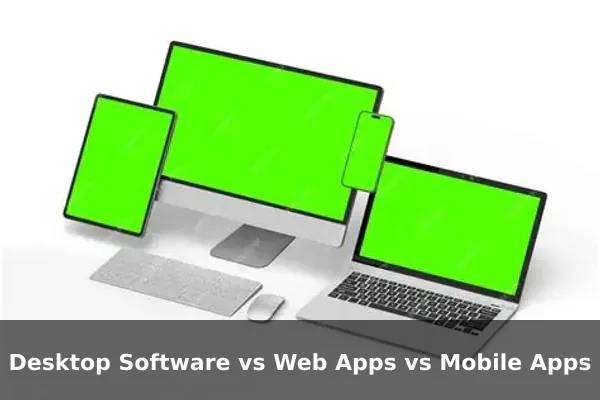
Many readers understand desktop software best by comparing it with other common software formats. Desktop, web, and mobile tools may perform similar tasks, but they are designed for different devices, user habits, and technical environments.
Installation and Access
- Desktop software is normally installed on a computer and launched from the operating system.
- Web apps run in a browser and are accessed through a website or online platform.
- Mobile apps are installed on smartphones or tablets and are designed for touch-based use.
This means desktop software usually fits users who spend long periods working on a computer, while mobile apps are often designed for quick access and portability.
Performance and Resource Use
Desktop applications often have an advantage in performance for demanding tasks because they use local hardware more directly. Web apps can be convenient and easy to access from different devices, but their experience may depend more on browser limits and internet quality. Mobile apps are excellent for portability but may be constrained by smaller screens and lighter hardware.
Offline Use
- Desktop software often supports strong offline use.
- Web apps usually depend more heavily on an internet connection, though some offer limited offline features.
- Mobile apps vary widely, with some working offline and others relying heavily on cloud access.
If a person needs reliable access during travel or in a controlled workplace, desktop software may still be the better choice.
User Experience and Work Style
Desktop software is usually built for deeper work sessions. It suits tasks that require multiple windows, precise controls, large file handling, complex menus, or advanced keyboard shortcuts. Web apps often prioritize convenience and cross-device access. Mobile apps prioritize speed, touch interaction, and use on the go.
When Each Option Makes Sense
Here is a practical way to think about it:
- Choose desktop software when performance, offline access, file control, or hardware integration matters most.
- Choose a web app when easy access across devices and team collaboration are the top priority.
- Choose a mobile app when portability, quick updates, and phone-first convenience matter most.
In many cases, modern software brands now offer more than one version so users can combine desktop, web, and mobile workflows.
Advantages and Limitations of Desktop Software
Desktop software offers strong benefits, but it also comes with tradeoffs. A balanced view helps readers decide when it is the best fit.
Main Advantages
- Better performance for heavy tasks because the software uses local computing power
- Reliable offline access for work that should not stop when the internet fails
- Stronger file and folder control for users who manage many local assets
- Deeper hardware support for printers, scanners, GPUs, audio tools, and specialized devices
- More advanced interfaces for detailed editing, development, analytics, or technical work
Main Limitations
- Installation is required, which adds setup time compared with browser-based tools
- Device dependence means the software is tied more closely to a specific computer
- Storage usage can be significant, especially for large professional tools
- Updates and maintenance may need user action or IT support
- Compatibility issues can appear if software supports one operating system but not another
These tradeoffs explain why desktop software is not automatically better than every alternative. It is simply better for certain jobs, especially those that reward local power and a full computer environment.
How to Choose the Right Desktop Software
If you are deciding whether to install a desktop application, use a practical checklist before downloading or paying for anything.
Check Operating System Compatibility
First, make sure the software works on your device. Some desktop programs support only Windows, while others also support macOS or Linux. Compatibility should include not just the operating system name but also supported versions.
Match the Software to the Task
Do not choose software only because it is popular. Choose it because it solves your actual problem. A student writing essays needs very different features than a video editor, accountant, or developer.
Review Features Carefully
Look for the features that matter most to your workflow, such as:
- offline access
- file export formats
- keyboard shortcuts
- collaboration options
- plugin or extension support
- backup and syncing features
A large feature list is not always better. The right desktop software is the one that supports your needs without adding unnecessary complexity.
Evaluate Pricing and Licensing
Some desktop software is free, some is open source, some requires a one-time purchase, and some uses a recurring subscription. Businesses should also check whether a license covers one device, one user, or multiple employees.
Think About Security and Updates
Install desktop software only from trusted sources. Reliable vendors usually provide regular updates, bug fixes, and security patches. This is important because installed software has more direct access to your computer than a simple web page does.
Consider Support and Long-Term Reliability
Before committing to a tool, ask a few practical questions:
- Is the software actively maintained?
- Does it have documentation or customer support?
- Can it open standard file formats?
- Will it still fit your needs next year?
These questions matter because switching software later can be disruptive, especially when your files, habits, or business records depend on it.
Why Desktop Software Still Matters Today
Some people assume desktop software is becoming less relevant because cloud services and mobile tools are everywhere. That idea misses how computing actually works in daily life and professional environments.
Desktop software still matters because many tasks need local power, larger interfaces, direct file handling, and dependable offline use. Professionals working with creative media, code, finance, data, or specialized business tools often need capabilities that are easier to deliver in a desktop application.
It also matters because not every user wants to rely completely on a browser or a constant internet connection. A desktop program can feel more stable, faster, and better suited to focused work. That is why desktop software remains central in offices, schools, studios, labs, and home workspaces.
Key Takeaways About Desktop Software
Desktop software is software installed on a desktop or laptop computer and designed to run directly on operating systems such as Windows, macOS, or Linux. It remains important because it combines local performance, file control, hardware access, and often strong offline functionality.
The best way to think about desktop software is not as old technology, but as a format that still solves specific problems extremely well. It is especially valuable for productivity, design, programming, business operations, media work, utilities, and gaming. While web apps and mobile apps are convenient, desktop software often remains the better choice when work requires depth, precision, speed, or full computer integration.
If you understand the definition, uses, and examples of desktop software, it becomes much easier to choose the right tool for each situation. In many modern workflows, the smartest approach is not picking one category forever, but knowing when desktop software offers the strongest advantage.
